
Picking the right file for Higher Than Before
We compared two formats of a LoftwahFM release in Prints Desktop and took the chosen original out with its bytes intact.
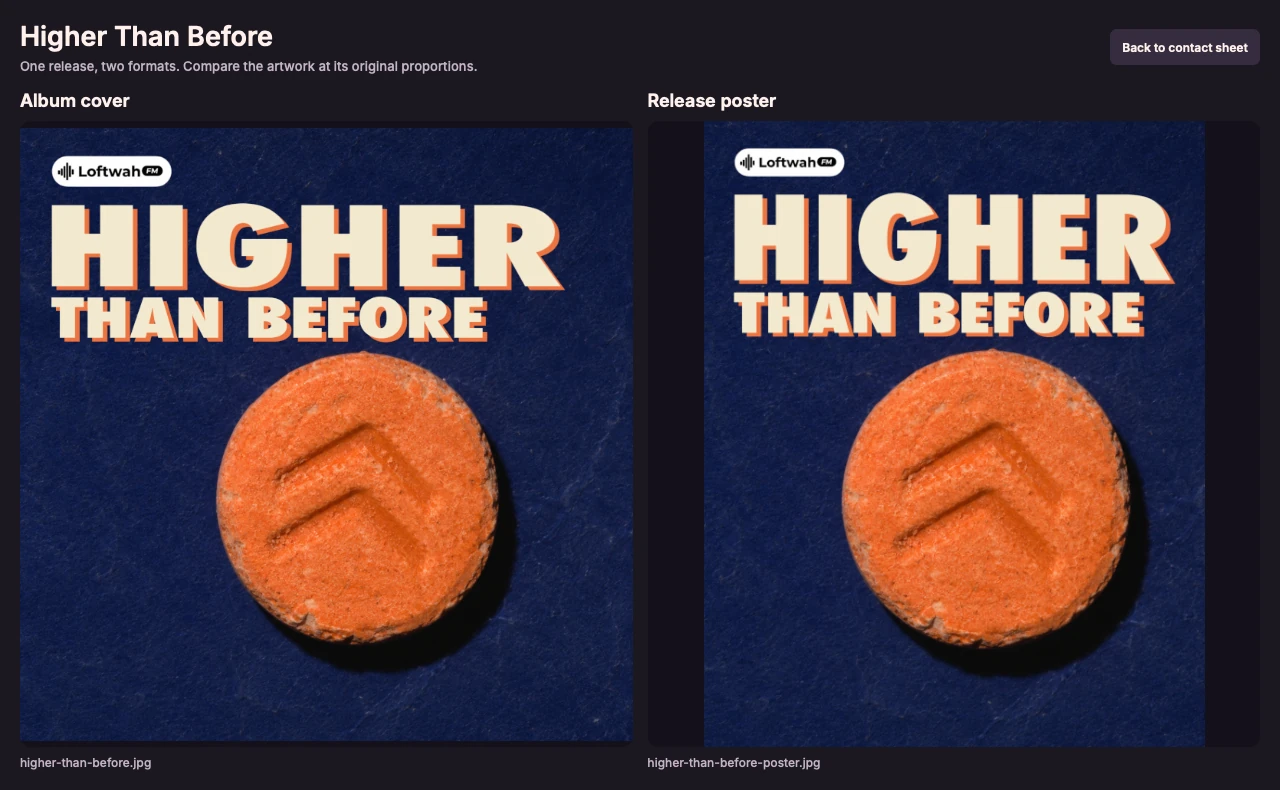
I opened Higher Than Before in Prints because the LoftwahFM release has two near-identical files. Both have cream lettering, an orange double chevron and a deep blue paper background. I could recognise either in a folder of thumbnails. That was exactly the problem. I needed to see what the taller canvas did to the same artwork before choosing a file.
The Creative Archive opens offline. I used Find to pull up the album cover, then chose Compare formats. The square cover is 1600 × 1600. The release poster is 1080 × 1350. Prints fits both to the screen at their original proportions, so I could see the full extent of each canvas. The square packs the title and tablet into a tighter frame. The poster leaves more blue beneath the tablet and more room around the subject. I’d use the square on the album page and the taller file for the poster slot. Both carry the same release identity.
I took the album cover back out
I left the comparison, opened Export original and saved the cover. In the keyboard replay, Command–F opened Find, Tab reached the comparison button, Space opened it, and Escape took me back to the contact sheet. Command–S opened Save.
The exported JPEG had the same SHA-256 as the published cover bundled with Prints. On a Mac, open the folder where you saved it and run shasum -a 256 higher-than-before.jpg.
The expected hash is 06b81e45c8af9ccc7d60e17cd80614c4ff65f58ed5c76e5602b4574aa312b3ac. The archive records the source and hash for each bundled file, including the artwork from Fighter and the Bubbles poster made from a real Classic clear. Loftwah Creative Archive provenance
The same job with my own files
The useful test was trying this with files outside the archive. In the earlier preview, I dropped two images together and only one appeared. The drop handler took the first path and discarded the rest. That was easy to miss if the first preview looked right.
In v0.4.2, a drop links the supported files as a batch and reports how many it kept. With two originals in Local imports, I can choose Set first image, select the other one and choose Compare images. That build supported up to 12 linked JPEG, PNG or WebP files.
Prints keeps a link to each original on disk. I moved a test image to a different name, reopened the app and got an unavailable original with a Locate original… button. Pointing Prints at the new file restored the entry. After reopening again, I exported it and the bytes still matched. If you reorganise a folder, that’s the route back to the file.
Save the decision with a brief
In v0.5.0, choose Keep with draft on each image, then open Prompt draft to save the brief with both references. Reopen the draft later to see the reasoning and go straight back to the files.
Try it on one decision
Open the built-in LoftwahFM pair first, then bring two versions of a piece you’re already working on. Give each version a destination. It might be a square album tile and a portrait announcement, or two crops for the same page. Look for what makes one work at the size people will actually see. Favourite the one you’d use and export it from the contact sheet.
That’s the job I wanted to check. I could compare two files, make a choice and leave with the original, all offline. If you already run an Oyster library, the desktop can connect for browsing and export. Generation and job recovery happen in signed-in web Prints.
Download Prints Desktop · Follow the desktop quickstart · Try the browser contact sheet