
From Workers AI to a byte-for-byte original
An App Composer illustration went through Cloudflare AI Gateway and Oyster. The Mac export and a later read returned the same JPEG.
Follow the request
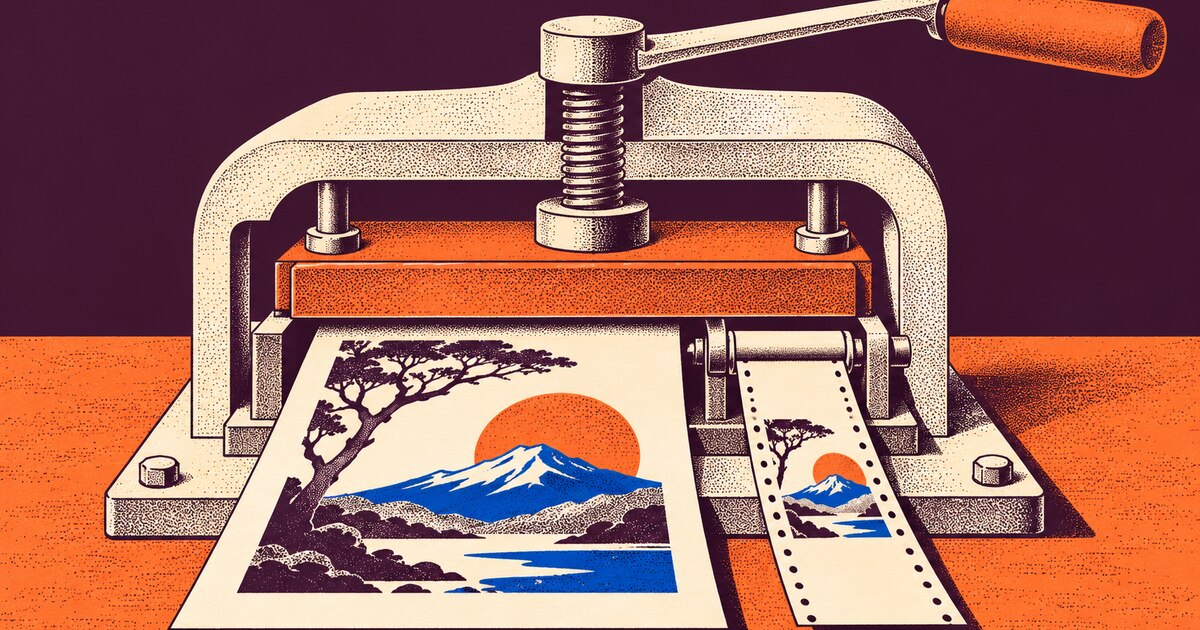
The brief called for an orange workshop machine setting a postcard into a removable tray, with an adjacent tray holding a signed slip. An early lettering study invented body copy that distracted from the concept. The selected approach left lettering out of the illustration and added the actual App Composer wordmark in the layout. The generated JPEG stayed available alongside the composed print.
On 25 November 2026 AEDT, the existing Loftwah owner connection opened a fresh Oyster MCP session. Prints listed 13 models and six existing output records. The run then submitted three individual image requests through Prints using Workers AI’s @cf/leonardo/lucid-origin. The default AI Gateway log recorded successful requests at 23:19:41, 23:22:48 and 23:24:49 AEDT. Prints indexed all three completed outputs, and each was read back as an original. Owner-run receipt · Fungi’s Workers AI setup guide
The Gateway entries establish when the inference calls completed. The Prints records provide a second piece of evidence. They identify the outputs retained in the gallery and give the client a way to read them again. That distinction matters when a request succeeds on the provider side and the creator still needs to recover the result.
Follow the file
The selected illustration was a 1,024 × 512 JPEG of 194,248 bytes. In a later owner-authorised session, Prints returned nine output records, including the saved illustration. The client rechecked its metadata and fetched its original bytes in slices. That repeat read made zero inference calls. Fungi documents the same bounded read contract for clients, with each openOutput request reading up to 128 KiB. MCP output read contract
On the Mac, the released Prints Desktop build opened the original and the composed artwork side by side. The native Save dialog exported the illustration. The later read and the exported file both had SHA-256 5bba254c526ea61b840638bd82c7a5c0792a28458df7045850099b268ef23808. That checks the original at the byte level across the two reads and the desktop export. Release and platform evidence
Keep the desktop credential scoped
The live generation run used the existing owner-authorised Oyster connection. Prints Desktop’s normal connection uses a revocable named App key scoped to one Prints installation with apps.read. It can browse compatible libraries and export originals. A first-time connection also needs a gallery folder selected on the intended Oyster Computer. Choose that folder in web Prints before connecting the desktop. Prints Desktop connection guide
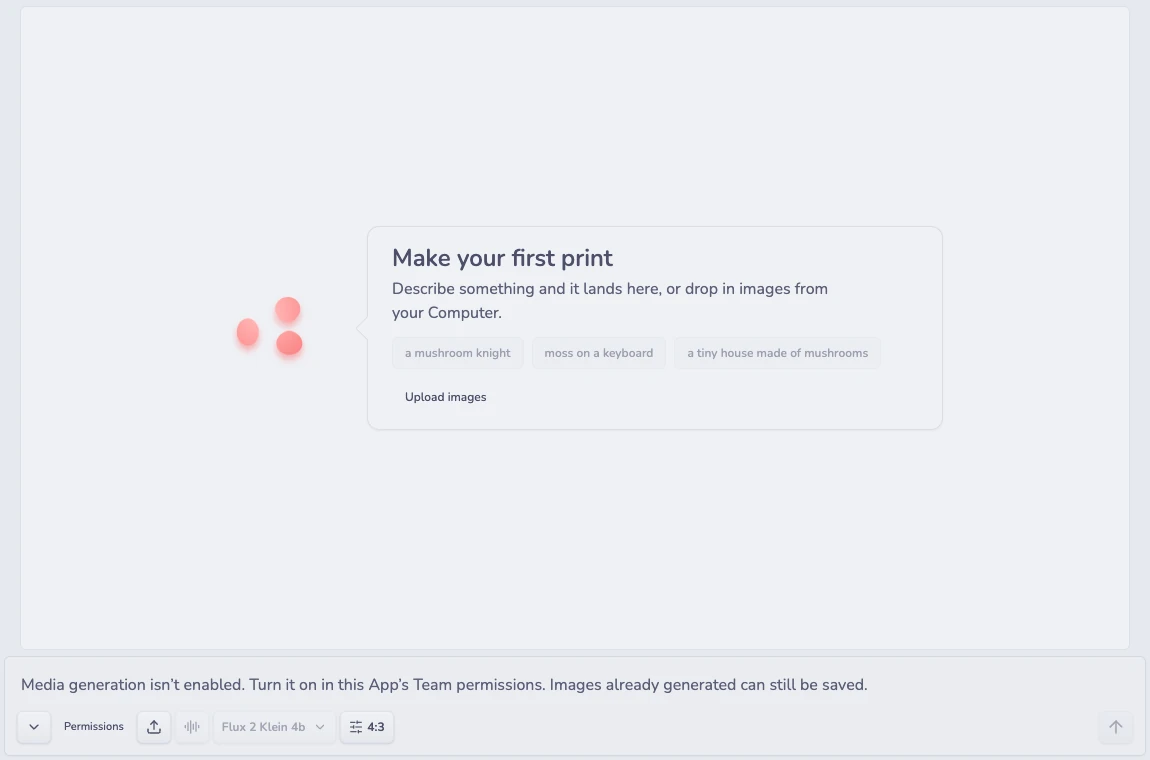
In the pinned upstream Oyster source, named keys authenticate as Team-key actors. The current Prints image generation handler declines that actor. The desktop therefore hands creation off to web Prints through Oyster’s normal browser sign-in. Scoped native creation remains open, along with an interrupted-job recovery check that reuses the original request identity and verifies a single provider run. Oyster named-key authentication · Prints generation admission · Native generation issue
Repeat it on your own installation
- Choose your Computer and gallery folder in web Prints. Confirm the model and cost settings on your account before generating.
- Run one image request and note the model and time. Look for the matching request in AI Gateway logs, then open the completed print in the gallery.
- Export the image from Prints Desktop with the scoped read key. Open a fresh authorised session, read the existing output and compare the two files with
shasum -a 256. If a request is interrupted, start by checking the existing job in web Prints.
An independent creator run is still open. Follow the adoption check